What Is a Tracking Pixel and How Does It Work?
At its core, a tracking pixel is just a tiny, transparent image—usually just 1x1 pixel—tucked away in the code of a website, email, or digital ad. It's completely invisible to the naked eye.
When you land on a page or open an email, your browser has to load everything on it, including this invisible pixel. The act of loading that tiny image sends a signal back to a server, logging the visit and collecting a handful of details about your session.
The Invisible Engine of Digital Marketing
Have you ever looked at a pair of sneakers online, only to see ads for those exact shoes popping up everywhere you go for the next week? That’s the tracking pixel in action.
Think of it as a tiny, digital breadcrumb. It’s not some complex piece of software; it's a simple, elegant tool that has become the backbone of performance marketing and modern digital advertising.
When that microscopic graphic loads, it’s doing more than just showing an invisible dot. It’s kicking off a data exchange. The request your browser sends to fetch the pixel also carries a small but valuable payload of information. This isn't just a clever technical trick; it's the fundamental process that lets businesses see how people interact with their sites and measure how well their ads are actually working.
What Data Does a Pixel Collect?
The information gathered is basic but incredibly powerful. A pixel on its own doesn't grab personal details like your name or email address. Instead, it collects anonymous data points that, when pieced together, paint a clear picture of website activity.
This typically includes:
Device Information: Things like the browser you're using (Chrome, Safari), your operating system (Windows, iOS), and whether you’re on a desktop or a phone.
IP Address: This gives a general sense of your geographic location, like the city or country you're browsing from.
Specific Actions: This is where it gets really useful. Marketers can set up pixels to "fire" (or activate) when specific events happen, like adding an item to a cart, viewing a product page, or, most importantly, completing a purchase.
To make this a bit clearer, let's break down the core components of a tracking pixel and what they do.
Tracking Pixel at a Glance: Key Components
Component | Description |
|---|---|
Pixel Image | The 1x1 invisible graphic embedded in the site's HTML or email code. Its loading is the trigger. |
Server Request | When the browser loads the pixel, it sends an HTTP request to the ad platform's server. |
Data Payload | Information passed along with the server request, like device type, IP address, and any specific event data. |
Cookie Matching | The server uses cookies stored in the user's browser to connect the activity to a previous ad interaction. |
Basically, these small pieces work together to connect the dots between someone seeing an ad and then taking an action on your website.
By connecting these small data points, a tracking pixel helps businesses attribute sales to specific ads, understand which marketing channels are most effective, and ultimately deliver more relevant experiences to their audience.
This foundational data is crucial for any business that wants to stop guessing and start making decisions with confidence. It’s the first step toward building effective data-driven marketing solutions that actually grow your bottom line.
How a Tracking Pixel Actually Works
So, how does this tiny, invisible pixel do so much? Let's break it down with a simple analogy. Think of it like a security camera in a store. When you walk in, the camera (the pixel) silently records that someone entered at a specific time. It doesn't know your name, but it logs the event.
When you land on a webpage, your browser gets to work fetching all the content needed to display the page—text, images, and, you guessed it, a nearly weightless 1x1 pixel. This pixel isn't actually part of the website's code; it’s a tiny image file hosted on a completely different server, like one run by Meta or Google.
Your browser sends a request to that external server to load the pixel. In that split-second request, a bundle of information gets sent along for the ride. This is the magic moment. When a marketer says a pixel has "fired," they're talking about this exact process: the browser requesting the pixel and the server logging all the data that came with it.
The Data Passed in the Request
What kind of information are we talking about? It's not personally identifiable stuff like your name or email, but it’s packed with valuable context about your visit.
Every time a pixel fires, it typically sends along:
User Agent: Details about the browser (like Chrome or Safari) and operating system (like iOS or Windows) you’re using.
IP Address: This gives a rough idea of your geographic location, such as the city or country you're browsing from.
Timestamp: The exact time and date the page was viewed.
Referring URL: The previous webpage you were on before landing on the current one. This is super useful for seeing where your traffic comes from.
This whole concept, sometimes called a web beacon, actually got its start in the early days of email marketing. Marketers in the mid-1990s needed a reliable way to see if anyone was actually opening their new HTML emails. The solution? An invisible 1x1 pixel. When an email was opened, the recipient's email client would request the pixel, which would "ping" the server and log the open. You can learn more about the early days of this technology by exploring the history of tracking pixels and their impact.
The diagram below lays out this simple, three-step process.
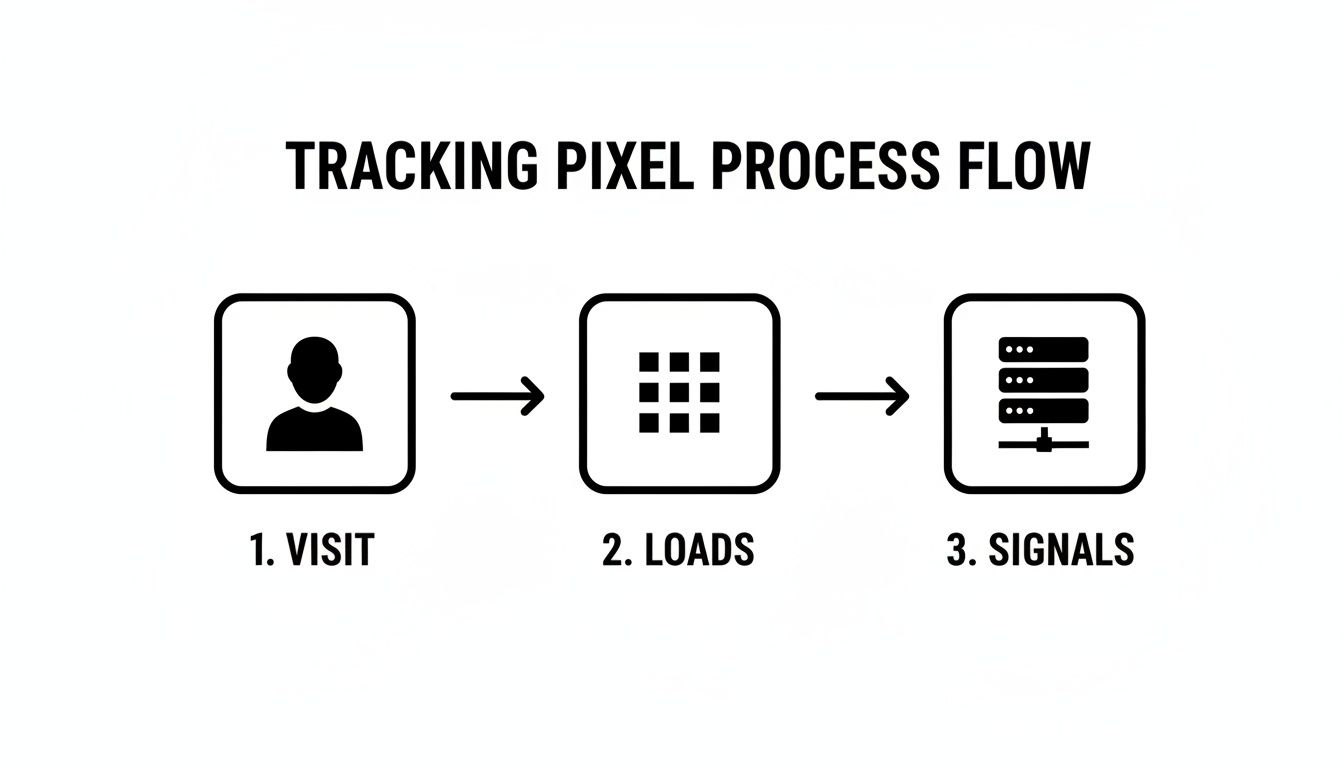
As you can see, the user’s visit triggers the pixel to load, which in turn sends all that useful data back to a tracking server.
First-Party vs. Third-Party Pixels
Now, here's where pixels become a game-changer for marketers. Their real power lies in connecting what someone does on your website to what they did off your website, like seeing one of your ads. This is where we need to understand the difference between first-party and third-party contexts.
A third-party pixel, like the popular Meta Pixel, is a piece of code you put on your website that’s hosted by another platform (in this case, Meta). It works by communicating with third-party cookies already stored in a user's browser, which helps identify them as the same person who saw your ad on Facebook or Instagram.
Imagine a user sees your ad on Instagram and, later that day, visits your website. When they land on your product page, the Meta Pixel fires. It then looks for and reads the Meta cookie in their browser, essentially sending a message back to Meta that says, "Hey, that person you showed the ad to earlier? They just landed on the site."
This connection is the bedrock of ad attribution and retargeting campaigns. It’s what allows you to measure an ad's effectiveness and show follow-up ads to people who have already shown interest. While this entire process is changing as browsers phase out third-party cookies, the fundamental goal of using pixels to connect user actions across different domains remains the same.
Why Pixels Are Essential for Performance Marketing

It’s one thing to understand the mechanics of a tracking pixel, but the real “aha!” moment comes when you see why it’s a must-have tool for any serious marketer. Trying to run a performance marketing campaign without a pixel is like flying a plane blind. You’re spending money and you’re moving, but you have no clue if you’re heading in the right direction.
Simply put, a pixel turns guesswork into hard data. It’s the invisible thread connecting an ad a user saw on Instagram to the final purchase they made on your Shopify store. This connection is what allows marketers to do three critical things: track conversions, build laser-focused audiences, and win back potential customers.
Measuring Conversions and Proving ROI
At its core, a tracking pixel’s main job is to measure the actions that truly matter—conversions. A conversion can be anything you define as valuable: a completed purchase, a newsletter signup, or even just adding an item to the cart.
Imagine a customer clicks your Facebook ad, lands on your site, and buys a product. The moment they hit the "Thank You" page, the pixel placed there fires off a signal to Meta, essentially saying, "Hey, that user you sent over? They just bought something."
This one simple signal unlocks a ton of powerful insights. Suddenly, you can:
Calculate Return on Ad Spend (ROAS): You know exactly how much revenue a specific campaign generated, allowing you to see if it was actually profitable.
Attribute Sales Accurately: No more guessing. You can pinpoint the exact ad, creative, or audience that drove a sale.
Optimize Your Funnel: For DTC brands, pixels show you which products people are looking at, which ones they’re adding to their cart, and which they ultimately purchase. This SKU-level data is gold.
By directly linking ad spend to revenue, pixels give you the concrete evidence needed to justify your marketing budget and scale what works. This data is the foundation for most marketing attribution software that helps you make sense of the entire customer journey.
Building High-Intent Audiences
Pixels do more than just report on past actions; they help you build incredibly valuable audience lists for future campaigns. Every time a pixel fires, it adds another person to a list of users who have engaged with your brand in some way.
A tracking pixel lets you segment visitors based on what they did on your site. For instance, you can create a "Custom Audience" of everyone who visited in the last 30 days, or get more granular with a list of users who abandoned their cart.
These audiences are pure gold because they're made up of people who have already shown interest in what you sell. From there, ad platforms like Meta and Google can create lookalike audiences, which are new groups of people who share the same characteristics as your best customers. This is one of the most effective ways to find new buyers.
Performance marketers rely on this pixel data to fuel their campaign optimizations. Meta's standard events and Google's enhanced conversions both depend on this constant flow of information to attribute sales correctly and model user behavior in an increasingly privacy-focused world.
Many agencies even report a 20-30% lift in ROAS just from using these pixel-fed audiences. The key is to keep them fresh, as performance can start to dip after about 7-14 days. This is just one of the many pixel-fed metrics experts monitor to stay ahead.
Ultimately, pixels allow you to serve the right message to the right person at the right time, turning casual browsers into your next loyal customers.
Pixel Use Cases by Marketing Goal
To see how this works in practice, let's look at how pixels support different marketing objectives. Each goal requires the pixel to track specific actions that inform your next move.
Marketing Goal | How the Pixel Helps | Example Action |
|---|---|---|
Increase Sales | Tracks purchase events to measure ROAS and identify top-performing ads. | A user clicks a Google Shopping ad, buys a product, and the pixel on the confirmation page attributes the sale back to that ad campaign. |
Generate Leads | Fires when a user completes a form, allowing you to measure cost-per-lead. | Someone fills out a "Contact Us" form after seeing a LinkedIn ad, and the pixel confirms the lead submission. |
Recover Abandoned Carts | Identifies users who added items to their cart but didn't check out. | A visitor adds a pair of shoes to their cart but leaves. The pixel adds them to a "Cart Abandoners" audience for a retargeting ad. |
Build Brand Awareness | Measures top-of-funnel engagement like page views or video watches. | The pixel tracks users who watched 75% of your awareness video ad, allowing you to retarget them with a more conversion-focused message. |
This table just scratches the surface, but it shows how versatile a single snippet of code can be. By aligning your pixel setup with your business goals, you ensure every piece of data you collect is actionable.
A Practical Guide to Getting Tracking Pixels on Your Site
Alright, so you get what a tracking pixel is. Now for the fun part: getting it onto your website. It sounds a lot more intimidating than it actually is. Thanks to modern platforms, you can usually get this done without having to call in a developer.
No matter which platform you’re using, the basic playbook is the same. First, you generate your unique code. Then, you place that code into your website's header. Finally, you double-check that it’s firing correctly. Let's break down how this actually works for the platforms most of us use every day.
Installing the Meta Pixel and Google Tag
When you're dealing with ad platforms like Meta (the new name for Facebook) or Google, everything starts inside your ad account. You'll need to poke around in the data sources or events manager section to create your pixel or tag.
Here’s the typical workflow:
Generate the Code: The platform will spit out a unique snippet of JavaScript. That’s your pixel. Think of it as your personal tracking agent.
Manual Installation: The old-school way is to copy this entire block of code and paste it into the
<head>section of your website’s HTML. You have to do this on every single page, so it usually goes into a global header file that your site uses everywhere.Use a Tag Manager: Honestly, this is the much smarter approach. Instead of cluttering your site with a dozen different pixel codes, you install one tool like Google Tag Manager (GTM). Once GTM is on your site, you can add, remove, and manage all your pixels—Meta, Google, TikTok, you name it—from one clean dashboard.
Getting the pixel installed is just the first domino. The base code tracks page views, but the real magic happens when you set up event tracking for specific actions like a lead submission or a purchase. A properly installed pixel is also a non-negotiable first step if you want to set up more robust, server-side tracking with something like the Meta Conversions API.
The Easy Button: Setup for Shopify Stores
For anyone running on Shopify, this whole process is a walk in the park. Shopify has built-in integrations with all the major ad platforms, which means you never have to look at a line of code. It's a massive win for DTC founders and small teams.
To get a pixel on your Shopify store, all you need is your unique pixel ID—not the whole messy code snippet.
For the Meta Pixel: Just head to your Shopify admin, go to Online Store > Preferences, and find the "Facebook Pixel" section. Paste your Pixel ID in the box, hit save, and you're done.
For Google Analytics & Ads: It’s almost identical. In that same "Preferences" area, you'll see a spot for your Google Analytics account. You just paste your Google Tag ID (it's the one that starts with "G-") here, and it will handle tracking for both Google Analytics and Google Ads.
Shopify takes care of the rest. It automatically injects the code in the right place and, even better, it pre-configures all the standard e-commerce events for you. This means that important actions like View Content, Add to Cart, and Purchase start tracking immediately. It’s all designed to get you up and running in minutes so you can focus on making sales, not fiddling with scripts.
Navigating the New Landscape of Data Privacy

While the tracking pixel has been a marketer's best friend for years, its world is being turned upside down. Consumers are more aware of their data than ever before, and a global push for better privacy is changing the rules of the game. For anyone running ads, this means the old playbook just won't cut it anymore.
This isn't just one thing; it's a perfect storm of new regulations and new technology. Laws like Europe's General Data Protection Regulation (GDPR) and the California Consumer Privacy Act (CCPA) now legally require you to tell users you're tracking them and get their permission first.
On top of that, the big tech companies are building privacy right into their software. Apple's App Tracking Transparency (ATT) framework, for example, forces apps to ask for permission before tracking you across the web. That one move massively choked the flow of data to ad platforms like Meta.
The Impact on Data Quality
So what does this actually mean for the data coming from your pixels? It means it’s getting messy. When a user says "no" to tracking or their browser automatically blocks a cookie, your pixel either can't fire or can't connect the dots between their click and a purchase. This leaves huge gaps in your measurement.
Here’s how this problem shows up in your day-to-day work:
Underreported Conversions: Your Meta Ads Manager reports 10 sales, but your Shopify dashboard shows 15. Those five missing sales didn't just disappear; they likely came from users whose tracking was blocked.
"Noisy" Performance Data: With chunks of data missing, it’s tough to know if a campaign is a real winner or just getting lucky. This "noise" can easily lead you to kill a great ad or scale a bad one.
Shrinking Retargeting Audiences: As fewer users can be tracked, those high-value audiences of website visitors and cart abandoners start to shrink, making your retargeting campaigns less and less effective.
The bottom line is that raw pixel data is no longer gospel. It's a vital signal, but it's an incomplete one. Trusting it blindly is a fast track to wasting ad spend and missing out on growth.
Adapting to the New Reality
So, how do we fix this? The industry is shifting toward solutions that rely on first-party data—your own data—and are built to respect user privacy while still giving you accurate measurement. The most powerful strategy right now is server-side tracking.
Here's the difference: instead of a user's browser sending data directly to Meta or Google, it first sends that data to your web server. Then, your server securely forwards it to the ad platforms. This is a much more durable connection because it isn't as easily blocked by browsers or ad blockers.
Tools like Meta's Conversions API (CAPI) are built for this exact purpose. By blending the browser pixel data you can get with the more reliable data from CAPI, you start to fill in those measurement gaps. For any marketer serious about performance today, getting a handle on this server-side approach is no longer optional.
Got Questions? Let's Talk Tracking Pixels
Even when you've got the basics down, tracking pixels can still feel a bit abstract. It’s totally normal to have some lingering questions about how this all plays out in the real world. Let's clear up a few of the most common points of confusion I hear from marketers and store owners all the time.
Can I Use Multiple Tracking Pixels on One Website?
Yes, absolutely. In fact, you pretty much have to.
Think about it: a typical ecommerce store is probably running ads on Facebook and Instagram, maybe some Google Shopping ads, and perhaps even testing the waters on TikTok or Pinterest. To measure what’s working on each of those platforms, you need a dedicated pixel for each one. The Meta Pixel talks to Meta's ad platform, and the Google Tag talks to Google's. They don't speak the same language.
The trick is to avoid plastering your site's code with a dozen different snippets. That gets messy, fast. Instead, smart marketers use a tag management system like Google Tag Manager (GTM). You install GTM's code on your site just once, and then you can manage all your other pixels—Meta, Google, TikTok, you name it—from a single, clean dashboard. It’s a game-changer for staying organized.
Do Tracking Pixels Slow Down My Website?
This is a valid concern. Technically, any new piece of code you add to your site adds a little bit of weight.
However, the pixels from major players like Meta and Google are engineered to be incredibly lightweight. They're built to load asynchronously, which is a fancy way of saying they don't hold up the rest of your page. Your product images, text, and buttons can all load while the pixel does its thing quietly in the background.
For the person browsing your site, the impact of a properly installed pixel is so small it's completely unnoticeable. The real slowdown culprits are usually an army of unmanaged scripts, clunky apps, or a poorly coded theme—not a handful of well-built tracking pixels. The value you get from the data is well worth the near-zero performance hit.
While a single pixel's impact is minimal, a website overloaded with dozens of unmanaged tags and scripts can see a noticeable drop in performance. This highlights the importance of using tools like Google Tag Manager to keep your tracking organized and efficient.
What Is the Difference Between a Pixel and a Cookie?
Ah, the classic pixel vs. cookie question. It's a common point of confusion, but the distinction is actually pretty straightforward. They're partners in crime, not the same thing.
Here’s a simple way to think about it:
The tracking pixel is the messenger. It’s the tiny bit of code on your site that sees a user take an action (like viewing a page or adding to cart) and immediately sends a report back to the ad platform's server. Its job is to report an event right now.
The cookie is the nametag. It’s a small text file that the ad platform asks the user's browser to hold onto. This file acts as a unique identifier, allowing the platform to recognize that user when they come back later or visit another page.
So, when the pixel fires to report an "AddToCart" event, it also looks for that little nametag (the cookie). If it finds one, it can tell Meta's server, "Hey, the person who just added this to their cart is the same one who clicked your ad an hour ago."
In short: the pixel reports the action, and the cookie identifies the actor.
Are you tired of guessing which ads are working and which are wasting your budget? SpendOwlAI translates noisy performance data from your pixels into clear, daily actions. It tells you exactly what to change—and what to leave alone—so you can execute with confidence. Start your free 7-day trial and stop wasting ad spend today.