A Practical Guide to Google Analytics UTM Tracking for E-commerce
Ever wonder what a Google Analytics UTM actually is? It's a small bit of code—called a parameter—that you tack onto the end of a URL. These parameters are like little notes for Google Analytics, telling it precisely how someone landed on your website.
Think of them as digital signposts. They track the source (where the visitor came from), the medium (how they got there), and the campaign name (why they came). It’s what turns marketing guesswork into hard, actionable data.
Why UTMs Are Crucial for Accurate Ad Attribution

If you're an e-commerce brand, you've been there. Sales are up, which is great, but you have no idea which specific marketing effort moved the needle. Was it that new ad creative on Meta? The influencer post? Or last Tuesday's email newsletter? When you don't have clear data, you're just spending money in the dark.
This is exactly where Google Analytics UTM parameters become your best friend. By tagging every single external link you put out into the world, you clean up what's often called 'dark traffic'—those frustrating visits that GA4 might otherwise lump into 'Direct' or '(not set)'.
Moving From Guesswork to Data-Driven Decisions
UTM parameters help you stop relying on gut feelings and start making strategic moves backed by real evidence. They give you the context you need to see exactly how your campaigns are performing, right down to the nitty-gritty details.
When you get them right, you can:
Pinpoint Your ROI: Finally see which campaigns, channels, and even individual ads are actually driving sales and revenue.
Optimize Your Ad Spend: Feel confident shifting your budget away from what's not working and doubling down on your winners.
Really Understand Your Audience: Get a clear picture of which channels your best customers are coming from.
The history here is pretty interesting. UTMs go all the way back to 2005 when Google bought a company called Urchin. That acquisition gave us the tracking modules we still use today—utm_source, utm_medium, and utm_campaign—and completely changed how we analyze marketing. In fact, a consistent UTM strategy can boost your campaign attribution accuracy by as much as 30%, turning a messy pile of data into clear, useful insights.
The core value of a Google Analytics UTM is simple: it forces every click to tell a story. It answers the fundamental questions of who sent the traffic, how they sent it, and why they sent it.
The Five Core Parameters
So, what are these parameters, exactly? There are five standard ones you’ll use constantly.
Here’s a quick-reference table to break them down.
The 5 Core Google Analytics UTM Parameters Explained
UTM Parameter | What It Answers | Example for a Summer Sale |
|---|---|---|
utm_source | Where is the traffic coming from? |
|
utm_medium | How is the traffic coming? |
|
utm_campaign | Why is the traffic coming? |
|
utm_term | Which keyword did they click? |
|
utm_content | Which specific ad or link did they click? |
|
Mastering these five tags is the first step toward getting clean, reliable data flowing into your analytics reports.
The Foundation of Strong Attribution
Without a solid UTM strategy, you simply can't build a reliable marketing attribution model. It’s that fundamental. These simple tags are the very first layer of data collection that feeds into all your other advanced tools and reports.
They ensure the information hitting Google Analytics is clean, organized, and, most importantly, trustworthy. For a deeper dive, you can explore our guide on marketing attribution software. This clean data is what allows you to finally compare apples to apples across all your channels, from paid ads on Google to your affiliate programs.
Creating a Scalable UTM Naming Convention
Let's be honest: without a consistent strategy, your UTM data in Google Analytics can quickly turn into a dumpster fire. Imagine trying to figure out how your Meta ads are doing, only to find data scattered across 'facebook', 'Facebook', 'FB', and 'meta'. It's a mess, and it makes getting a clear picture of performance impossible.
A solid UTM naming convention is the single most important thing you can do to keep your marketing data clean, reliable, and actually useful. Think of it as creating a shared language for your analytics. When everyone on the team speaks the same language, the stories your data tells are clear and consistent. This isn't about creating a bunch of rigid, complicated rules; it's about building a simple, repeatable system that stops data chaos before it even starts.
The Ground Rules for Clean Data
Before we get into specific templates, there are a few non-negotiable rules that are the bedrock of any good UTM system. If you follow these religiously, you'll solve 90% of the most common data hygiene headaches.
Always use lowercase. Google Analytics is case-sensitive, which means
Facebookandfacebookare treated as two completely different sources. Forcing everything to lowercase from the get-go eliminates this problem and makes sure all your data rolls up correctly.Pick a separator and stick with it. URLs can't have spaces, so you need a character to separate words. The most common choices are the underscore (
_) or the hyphen (-). Honestly, it doesn't matter which one you choose, but you must pick one and use it every single time. We'll use underscores in our examples here.Keep it simple and descriptive. Your campaign names should make sense at a glance. Ditch the cryptic abbreviations or long, rambling descriptions. Clarity is the goal, not complexity.
A great UTM naming convention isn’t just a technical task; it's a communication tool. It ensures that six months from now, you (or a new teammate) can look at a campaign name and know exactly what it was for without digging through old ad accounts.
Structuring Your Campaign Names for Clarity
This is where the real magic happens. By creating a standardized format for your utm_campaign parameter, you can embed crucial details directly into the URL itself. This makes your analysis in GA4 infinitely more powerful because you're adding layers of information right from the start.
For instance, a solid naming structure for a paid social campaign on Meta might look something like this:
[objective]_[audience]_[country]_[creative_type]
Let's see how this plays out in a real-world scenario. Say you're running a summer sale campaign targeting a lookalike audience in the US with a new video ad.
Objective:
conversionsAudience:
lookalikeCountry:
usCreative Type:
videoad1
Put it all together, and your utm_campaign becomes: conversions_lookalike_us_videoad1. Instantly, you know the campaign's goal, who it targeted, where it ran, and the creative it used. No guesswork needed.
Practical Naming Templates for Different Channels
This structured approach can, and should, be adapted for every marketing channel you use. The key is consistency. Document these templates in a shared space and make sure your whole team is on board.
Here are a few templates to get you started:
Meta Ads (Facebook/Instagram):
utm_source=metautm_medium=cpcutm_campaign=[objective]_[audience]_[placement]_[creative]Example:
conversions_retargeting_auto_imagead2
Email Newsletters:
utm_source=klaviyo(or whatever ESP you use, like Mailchimp)utm_medium=emailutm_campaign=[date]_[campaign_type]_[audience_segment]Example:
20241031_halloween_sale_active_subscribers
Affiliate Marketing:
utm_source=[affiliate_name]utm_medium=affiliateutm_campaign=[promotion_type]_[product_focus]Example:
influencerpromo_fall_collection
By establishing and documenting these conventions, you create a system that scales right alongside your marketing efforts. It transforms your Google Analytics data from a jumbled mess of links into a powerful, organized library of campaign performance insights.
How to Build and Validate Your UTM-Tagged URLs
Okay, you’ve done the hard work of creating a rock-solid UTM naming convention. Now it’s time to actually build the links you'll use in your campaigns. This is where the rubber meets the road, and even tiny mistakes can create massive headaches in your analytics down the line. Precision here is non-negotiable.
There are a few ways to generate your tagged links, from doing it by hand to using powerful automation tools. We'll start with the manual approach because it’s the best way to truly understand what’s going on under the hood before moving on to more practical, scalable methods.
The Manual Method: Understanding the Anatomy of a UTM Link
A UTM-tagged URL is simply your destination link with a question mark slapped on the end, followed by your parameter=value pairs, all strung together with ampersands. Building one by hand is a great way to see how all the pieces fit together.
Let’s say your landing page is https://www.yourstore.com/products/summer-sandals. To track a Meta ad, you’d just tack on your parameters:
?utm_source=meta&utm_medium=cpc&utm_campaign=summer_sale_conversions_lookalike_us
The final URL you’d use in your ad would look like this:
https://www.yourstore.com/products/summer-sandals?utm_source=meta&utm_medium=cpc&utm_campaign=summer_sale_conversions_lookalike_us
While you can type this out yourself, it's a recipe for typos. One forgotten ampersand or a misspelled parameter and your tracking is broken. That's exactly why most marketers lean on a dedicated tool for this.
Using Google's Campaign URL Builder
The most popular and foolproof way to create individual links is with Google’s Campaign URL Builder. It’s a free, simple form that completely removes the risk of manual formatting errors.
You just plug in your values:
Website URL: The base link, like
https://www.yourstore.com/products/summer-sandals.Campaign Source (utm_source): The platform sending the traffic, e.g.,
meta.Campaign Medium (utm_medium): The marketing channel, like
cpc.Campaign Name (utm_campaign): Your pre-defined, structured name, such as
summer_sale_conversions_lookalike_us.
As you fill out the form, the tool generates the perfectly formatted URL at the bottom of the page. All you have to do is copy and paste it into your ads, emails, or social posts. It's the go-to starting point for anyone serious about google analytics utm tracking.
This simple process reinforces the core principles of clean UTM hygiene: consistency and structure are everything.
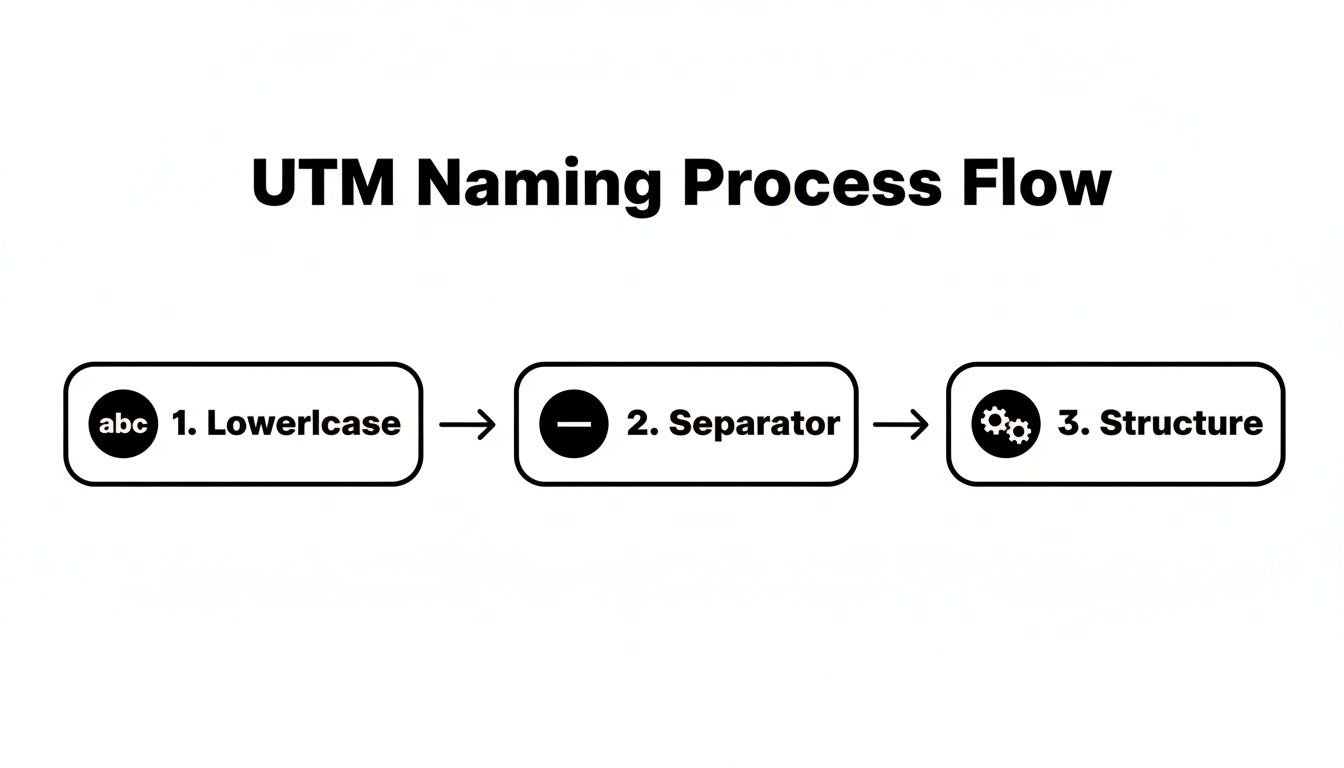
This visual is a great reminder that a repeatable process—always lowercase, consistent separators, and a logical structure—is what keeps your analytics data clean and trustworthy.
Scaling Up with Spreadsheets and Automation
Google's builder is fantastic for a single link, but it’s a real drag when you’re launching a campaign with dozens of ads. This is where a good old-fashioned spreadsheet, like Google Sheets or Excel, becomes your best friend.
You can set up columns for your base URL and each of the five UTM parameters. Then, with a simple formula (like CONCATENATE or just using &), you can generate hundreds of unique, error-free URLs in seconds. This method is not only faster but also gives you a central log of every tracked link you've ever created.
Pro Tip: Never, ever launch a campaign without testing your links first. A broken UTM tag is actually worse than no tag at all—it gives you a false sense of security while your data is silently disappearing.
Validating Your Links Before You Go Live
Building the URL is just step one. The most important part of this whole process is validation—making sure the link works and shows up correctly in Google Analytics before you spend a single penny.
The easiest way to do this is by using the Realtime report in Google Analytics 4.
Copy your newly built UTM-tagged URL.
Paste it into a new browser tab and hit Enter.
Head over to your GA4 property and open Reports > Realtime.
Keep an eye on the "Users by Session source / medium" or "Users by Session campaign" cards.
Within seconds, you should see your visit pop up with the exact source, medium, and campaign you just defined. If you see (direct) / (none) or anything else, you've got a problem. That simple two-minute check can save you from the nightmare of launching a campaign that sends completely untracked traffic. It's a costly mistake that's incredibly easy to avoid.
Where Your UTM Data Shows Up in GA4
You’ve put in the work to build clean, consistent UTM-tagged URLs. Now for the fun part: seeing that effort pay off by turning raw data into actual business intelligence. A solid google analytics utm setup lets you finally move past surface-level metrics and start answering the questions that really drive growth. Where is my best traffic coming from? Which specific campaigns are generating revenue?
The great thing is that finding this data in Google Analytics 4 is pretty straightforward once you know where to go. GA4 is built around user engagement, which makes the session-level data your UTMs provide incredibly powerful. Your home base for all this analysis will be the Traffic acquisition report.
Getting Around the Traffic Acquisition Report
To get started, head over to Reports > Acquisition > Traffic acquisition inside your GA4 property. By default, GA4 usually groups traffic by the 'Session default channel group,' which gives you a high-level look at channels like Organic Search, Paid Social, and Direct. It's a decent starting point, but it hides the granular detail your UTMs were designed to reveal.
The real magic happens when you change the primary dimension.
Just click the little dropdown arrow right above the first column in the data table. This lets you pivot the entire report to organize the data by your UTM parameters. For campaign analysis, you'll be spending most of your time with two options:
Session source / medium: This is your bread and butter. It combines your
utm_sourceandutm_mediumtags, showing you exactly which platforms are driving traffic (e.g.,meta / cpc,klaviyo / email).Session campaign: This organizes everything by your
utm_campaigntag, making it perfect for comparing the performance of specific marketing initiatives against each other.
Let’s say you're running a big promotion. By switching the primary dimension to 'Session campaign,' you can instantly isolate all the traffic tagged with utm_campaign=black_friday_sale and see how it performed across every single channel, all in one clean view.
A Real-World Analysis Example
Let's walk through a common scenario. Imagine you've been running that black_friday_sale campaign across three different channels: Meta ads, a Google Ads campaign, and your email newsletter.
Here’s how you’d break it down:
In the Traffic acquisition report, set the main dimension to Session campaign.
Use the search bar right above the table to filter for "black_friday_sale."
Now, click the blue + icon next to the primary dimension to add a secondary one. Choose Session source / medium.
Just like that, your report now gives you a detailed breakdown of how that single campaign performed across meta / cpc, google / cpc, and klaviyo / email. You can compare essential metrics like sessions, engaged sessions, conversions, and total revenue to see which channel really delivered the goods.
UTM parameters became even more essential for accurately measuring engaged sessions after the GA4 updates post-2021. We've seen examples showing a consistent 25% week-over-week growth in sessions for tagged campaigns, which is the kind of directional precision performance managers at mid-market e-commerce brands crave. This is especially true for teams using SpendOwlAI to monitor fatigue in UTM-tagged Google Ads traffic.
Think about it: your Meta campaign tagged utm_campaign=black_friday_sale might bring in 20% more engaged sessions than untagged organic traffic. But if you don't check the 'Session medium' dimension, you could miss that the cpc medium actually attributes 35% higher purchase revenue. You can learn more about how GA4 defines sessions on Google's official support page.
This ability to slice and dice your data is the entire point of using UTMs. It transforms a generic report into a powerful diagnostic tool that tells you not just what happened, but why.
Go Deeper with Custom Reports in Explorations
While the standard reports are fantastic for quick checks, GA4's Explorations feature is where you can unlock truly custom insights. Think of it as a free-form report builder that lets you visualize your UTM data in almost any way you can dream up.
For instance, you could build a custom funnel exploration to see how users from different campaigns move through your checkout process. Or, you could create a path exploration to understand the journey users take after landing from a specific ad. For a deeper dive into optimizing these user journeys, check out our guide on website conversion optimization.
This is where you stop reporting on data and start making decisions with it. By analyzing which campaigns drive not just clicks but high-value conversions, you can confidently shift your budget, sharpen your creative, and build a marketing mix that delivers maximum impact.
Advanced UTM Strategies and Common Pitfalls
Once you’ve nailed down the basics, you can really start making your UTM parameters work for you. Moving beyond simple source/medium tracking is where you unlock the kind of insights that separate good campaigns from great ones. This is where you can A/B test creatives, pinpoint high-value keywords, and get a much clearer picture of what’s actually driving performance.
The real power here comes from digging into the more granular parameters: utm_content and utm_term. These are your secret weapons for answering very specific, high-stakes business questions.
Elevating Your Tracking with utm_content and utm_term
Think of utm_content as your creative differentiator. Let's say you're running two different ads in the same Meta ad set. Without specific UTMs, you'll know the ad set is working, but you won't know which creative is pulling the weight.
By tagging them differently, you get a definitive answer.
Ad 1:
utm_content=blue_graphic_cta_shopearlyAd 2:
utm_content=video_testimonial_cta_shopearly
Jump into your GA4 reports, filter by your campaign, and then add utm_content (Session manual ad content) as a secondary dimension. Instantly, you can see which version had a better conversion rate or drove more revenue. No more guessing.
Likewise, utm_term is absolutely essential for paid search. While Google Ads auto-tagging is fantastic, utm_term lets you manually track specific keywords or targeting criteria on other platforms. This helps you unify your data and see which search terms are truly the most profitable across your entire marketing mix.
Platform-Specific Best Practices
Every ad platform has its own nuances, and your UTM strategy needs to adapt accordingly. For Google Ads, enabling auto-tagging is non-negotiable. It automatically appends a Google Click ID (GCLID) to your URLs, which feeds incredibly rich data from your ad account directly into Google Analytics—far more than you could ever get with manual UTMs alone.
Over on platforms like Meta, using dynamic URL parameters is a total game-changer. Instead of painstakingly creating a unique URL for every single ad, you can use dynamic placeholders that automatically pull in the ad name, placement, or ad set ID.
For example, you can set your
utm_campaignto{{campaign.name}}and yourutm_contentto{{ad.name}}. Meta will automatically swap these placeholders with the actual names from your campaign setup. This saves a massive amount of time, slashes human error, and is crucial for keeping your google analytics utm data clean at scale.
These practices have become even more critical since GA4's rollout. With default data retention limits of just two months for demographic data (versus up to 14 months for user-level conversions), you need to act on your UTM insights fast. We’ve seen that businesses properly segmenting campaigns in GA4's Explorations report a 22% higher conversion rate. They can pinpoint top performers, like seeing utm_content=variant_a drive 18% more revenue per session.
For those using platforms like SpendOwlAI, this translates to proactive monitoring. A 12% dip in ROAS for utm_medium=paid_social can be flagged early, preventing reactive budget cuts that often waste 10-15% of ad spend. You can find more details on modern UTM best practices on trionia.com.
Costly Mistakes You Must Avoid
Even the most carefully planned UTM strategy can be completely derailed by a few common—and costly—mistakes. These slip-ups will muddy your data, break your attribution, and can lead you to make some seriously wrong decisions with your budget.
One of the most damaging errors is using UTMs for internal links. You should never, ever tag a link that goes from one page of your website to another. When you do this, you overwrite the original source data for that user's session. Imagine a user arrives from a paid ad, then clicks an internally tagged link. GA4 will immediately start a new session, and you’ve just lost the connection to that initial paid click.
What Not to Do: Adding
?utm_source=homepage_bannerto a link on your homepage.What to Do Instead: Use GA4's built-in event tracking to measure clicks on internal banners, buttons, and CTAs.
Another all-too-common problem is inconsistent capitalization and spacing. You have to remember that Facebook and facebook are treated as two entirely different sources in Google Analytics. Always stick to lowercase and use a consistent separator, like an underscore (_) or hyphen (-). A single capitalized letter can fragment your reports and turn accurate analysis into a nightmare. Our guide on using the Meta Conversions API also dives into why data consistency is so critical for reliable ad tracking.
Finally, forgetting to tag major channels is a huge missed opportunity. If you're sending out a weekly newsletter without UTMs, all that valuable traffic is likely being lumped into 'Direct'. This makes it completely impossible to measure the true ROI of your email marketing. The rule is simple: if you control the link, you tag the link.
UTM Troubleshooting Quick Reference
When your analytics data looks off, faulty UTMs are often the culprit. It can be frustrating to hunt down the source of the problem. This quick reference table is designed to help you diagnose and fix the most common issues fast.
Problem Symptom | Likely Cause | How to Fix It |
|---|---|---|
Spike in 'Direct' traffic | Untagged links in key channels like email newsletters, social media bios, or offline marketing materials (QR codes). | Audit all marketing channels and ensure every outbound link you control is properly tagged with UTMs. Create and share a UTM builder template with your team. |
Campaign data is fragmented (e.g., 'Facebook' & 'facebook') | Inconsistent use of capitalization, spacing, or separators ( | Enforce a strict, lowercase-only naming convention. Standardize on one separator (e.g., underscores) and document it in your UTM policy for everyone to follow. |
Paid search traffic showing as 'Organic' or 'Referral' | Google Ads auto-tagging is turned off, or there's a URL redirect stripping the GCLID parameter. | Turn on auto-tagging in your Google Ads account. Audit your website for redirects that might be removing URL parameters and work with your dev team to fix them. |
Session source changes mid-visit | Internal links on your website have been tagged with UTMs. | Immediately remove all UTM parameters from internal links. Use GA4 event tracking to monitor on-site user behavior and navigation between pages instead. |
| A required UTM parameter (like | Always validate your tagged URLs before launching a campaign. If using dynamic parameters (e.g., |
By keeping these potential issues in mind and referring back to this guide, you can maintain the clean, reliable data you need to make smart, profitable marketing decisions.
A Few Common UTM Questions
Even with the best-laid plans, a few tricky questions always seem to pop up once you start getting your hands dirty with UTMs. Let's tackle some of the most common ones I hear from founders and marketers. Getting these right is crucial for a tracking setup you can actually trust.
Can I Use Google Ads Auto-Tagging and Manual UTMs at the Same Time?
Yes, you can, and you should understand how they play together. When you flip on auto-tagging in Google Ads, it automatically appends a GCLID (Google Click Identifier) to your ad URLs. This little parameter is a powerhouse, letting Google Analytics 4 pull in a ton of rich data directly from your ad account—things you can't get with manual tags alone.
Here’s the key thing to remember: for core parameters like source, medium, and campaign, GA4 will always prioritize the data from the GCLID over any manual UTMs you’ve added. However, your manual tags for utm_content and utm_term will still come through just fine.
My advice? Always keep auto-tagging on for Google Ads. If you need more granular tracking—say, to A/B test different ad creatives—use the tracking template feature inside Google Ads to add those specific
utm_contentparameters. It's the best of both worlds.
What’s the Difference Between User and Session Scope in GA4?
This is a big one. It trips people up all the time, but understanding it is fundamental to reading your GA4 reports correctly.
The "First user source / medium" dimension tells you the story of how a person first found you. That attribution is sticky; it stays with that user. On the other hand, "Session source / medium" tells you what brought them back for one specific visit.
Let’s walk through a real-world example:
Someone discovers your brand by searching on Google and clicks an organic link. GA4 sets their
First user source / mediumto google / organic.A week later, you send out a newsletter. They click a link you've tagged with
utm_source=klaviyoandutm_medium=emailto visit your site again.For this specific visit, the
Session source / mediumwill be correctly reported as klaviyo / email.
When you're trying to figure out if that newsletter or that new ad campaign is working right now, you almost always want to look at session-scoped dimensions. They give you the clearest picture of what's driving immediate traffic.
How Can I Track Offline Campaigns with UTMs?
Believe it or not, UTMs are fantastic for measuring the impact of offline marketing like event flyers, print ads, or podcast mentions. The trick is simply to bridge the physical and digital worlds.
A QR code is your best friend here.
Start by building a full UTM-tagged URL just like you would for a digital campaign. You might use something like utm_source=flyer and utm_campaign=local_event_promo. Then, pop that long URL into a free online QR code generator. When someone scans that code on your flyer, GA4 logs the visit as if they clicked any other link.
Another great option, especially for radio or podcast ads, is a vanity URL. Set up a simple, memorable link (like yourbrand.com/offer) that redirects to the full, messy UTM-tagged URL. This works because people can easily type it in, and the tracking still works perfectly behind the scenes.
At SpendOwlAI, we transform this kind of clean, UTM-driven data into straightforward, actionable advice for your ad accounts. We don't just build dashboards; our system tells you exactly what to change in your Meta and Google campaigns—and, just as importantly, what’s already working and should be left alone. Stop guessing and start executing with confidence. Begin your free 7-day trial today and see the difference.